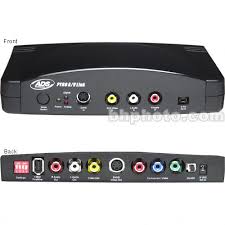
PYRO AV LINK - Video Converter ADS TECH - Free user manual and instructions
Find the device manual for free PYRO AV LINK ADS TECH in PDF.


| Product Type | Analog/DV Video Converter |
| Power Supply | 5 V DC via supplied power adapter |
| Main Functions | Analog to DV and DV to analog conversion, video capture on PC/Mac, export, standalone conversion without computer, PAL/NTSC compatibility, external FireWire/1394 interface |
| Capture Resolution | NTSC: 720×480 at 30 fps, PAL: 720×576 at 25 fps |
| Audio | 48 kHz, 16-bit |
| Video Inputs | RCA composite, S-VHS (Y/C 4-pin), Component (YUV), DV 4-pin FireWire |
| Video Outputs | RCA composite, S-VHS (Y/C 4-pin), 1394 6-pin |
| Audio Inputs/Outputs | RCA stereo (right and left) |
| Mode Selector | Analog or Digital (front button) |
| LED Indicators | Green (power), Blue (DV capture), Red (analog export) |
| DIP Switch | 4 positions: PAL/NTSC, DV/OS source, audio lock |
| Software Compatibility | Windows 98SE/ME/2000/XP, Mac OS 9.0.4/OS X; DV editing software (Adobe Premiere, iMovie, VideoStudio, etc.) |
| Minimum System Requirements (PC) | 800 MHz processor, 128 MB RAM, UDMA 5400 RPM hard drive, 1394 OHCI port |
| Minimum System Requirements (Mac) | 400 MHz processor, 128 MB RAM, 1394 OHCI port |
| Box Contents | PYRO A/V Link device, 5 power adapters, 1.82m RCA-RCA cable, 1.82m S-VHS cable, 1.82m 1394 6-6 pin cable, 1.82m 1394 4-4 pin cable, user guide, software CD (Windows) |
| Care and Cleaning | Clean with a soft, dry cloth. Do not use abrasive materials. |
| Safety | Use only the supplied adapter. Do not expose to moisture. |
| Spare Parts and Repairability | No user-serviceable parts. Contact customer service. |
Frequently Asked Questions - PYRO AV LINK ADS TECH
User questions about PYRO AV LINK ADS TECH
0 question about this device. Answer the ones you know or ask your own.
Ask a new question about this device
Download the instructions for your Video Converter in PDF format for free! Find your manual PYRO AV LINK - ADS TECH and take your electronic device back in hand. On this page are published all the documents necessary for the use of your device. PYRO AV LINK by ADS TECH.
USER MANUAL PYRO AV LINK ADS TECH
PYRO A/V Link: Multilingual Manual
High-Quality Analog to DV Video Converter
User's Guide : First Edition
ADS Tech
North America Support Hours:
M-F:8am-5pm.PST
Email: support@adstech.com
website: www.adstech.com
Table of Content
Product Overview 5
The missing link in DV Video 5
Capture, Edit, Export 5
Features 6
What's Included 6
Connection Configurations 7
7
Export DV from computer to Analog monitor or video tape recorder 7
Capture from a DV Camcorder 8
Export DV to your Digital Camcorder 8
Dub video from an Analog device to a Digital recorder or from a Digital deck or camcorder to an Analog video tape machine 8
PYRO A/V Link Hardware Description 9
Front Panel 9
Rear Panel 10
4 Position Dip Switch 10
6 Pin 1394 / FireWire Connection 12
Right and Left RCA Audio Outputs 12
Video Out (RCA) 12
S-VHS Out (Y/C 4 Pin Din) 12
Component Video 12
On/Off 12
Power Jack - 5VDC Input 12
Getting Started - Windows 13
Hardware Installation 14
Windows - Quick Start 14
Windows Software 14
Getting Started - Mac 16
Hardware Installation 2 17
MAC - Quick Start 17
Software 17
Computer Connected Configurations 18
Ready to Capture Video 18
Connecting an Analog Video Source 18
Capturing Video with your Video Capture / Edit Software 20
Connecting an External TV for Simultaneous Video Preview 21
Connecting for Analog Record and Preview at the same time 22
Connecting for Capture from DV Camcorder 23
Exporting Video from a Video Editor to an Analog Device 24
Exporting to a Digital Camcorder 25
Non-Computer Configurations 26
Connecting for Analog to Digital Conversion 26
Connecting for Digital to Analog Conversion 27
Installing the Bundled Software CD 29
Using VideoStudio Software 30
Hardware checkup before using VideoStudio 31
Installing and running VideoStudio 33
Configuring VideoStudio 34
Using DV Pass-Through for Digital Camcorders 35
Getting around VideoStudio 36
Detailed Product Specifications 38
Troubleshooting 39
German Manual 40
French Manual 70
Spanish Manual 100
Service & Warranty 130
FCC Information 131
Contacting Technical Support 131
Copyright Notice
The PYRO A/V Link is an innovative, hassle-free device that is designed to let you convert analog video to dv and vice-versa easily. ADS Technologies respects the rights of copyright owners and asks that you do the same. The Copy Right Act gives owners of copyrights the exclusive right to reproduce and prepare derivative works as well as to publicly perform, display and distribute their works. This means that you must obtain permission to engage in any of these activities when using works that are copyrighted by another person.
© 2003 ADS Technologies. All Rights Reserved
First Edition: September 2003
Microsoft, Windows, & Windows 98 are registered trademarks of Microsoft Corporation. IBM is a registered trademark of the International Business Machines, Inc.
ADS is a registered trademark of ADS Technologies Inc. ADS Technologies (ADS) makes no warranty of any kind with regard to this material, including but not limited to, the implied warranties of merchantability and fitness for a particular purpose. The information furnished within this written document is for information purposes only and is subject to change without notice. ADS Technologies assumes no responsibility or liability for any errors or inaccuracies that may appear herein. ADS makes no commitment to update or to keep current information contained within this document. (rtt)
Product Overview
PYRO A/V Link
High Quality Analog to DV Video Converter
The ultimate tool for capturing and converting video into professional quality DV format and an extraordinary tool for exporting edited DV content to analog video tape recorders..
The missing link in DV Video
Capturing DV from a Digital camcorder is fantastic, but what about all of the video content you have in other formats (8mm, beta, VHS, DVD), how do you get that content into the DV format? PYRO A/V link solves the problem by converting any analog video source into DV.
DV video looks great but when you want to send it to tape your options are limited. You can export back to your miniDV camcorder, but it's hard to share a miniDV tape with Grandma. PYRO A/V link bridges the gap by allowing you to export DV video to any analog video recorder. Capture and edit your video, then output to VHS and share tapes that anyone can watch!
Capture, Edit, Export
With PYRO A/V link you can capture from any video source, including DV camcorders. Mix and match your video content to create a truly unique video production. Capture the video with VideoStudio 7 SE DVD, then add video filters, transition effects, video overlays, narration, background music and more. When your video production is a wrap, export to any VCR or VTR, save as MPEG-2 and burn a DVD (Windows only) or publish to the Internet.
Features:
- External FireWire/1394 device
- Converts analog (RCA, S-VHS or Component Video) to DV video format
- Export DV Video to analog video tape recorders (RCA, S-VHS, Component)
- Convert between devices (from DV to Analog or Analog to DV) without using a computer
- Capture from DV camcorder with full device control
- Compatible with a wide range of video DV editing software
- Capture as MPEG-2 video and Create VCD, SVCD, DVD disks (Windows only using VideoStudio)
What's Included:
1.) PYRO A/V Link device
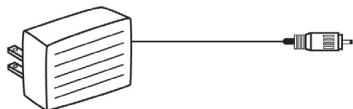
2.) 5 VDC Power Supply
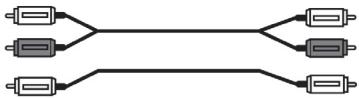
3.) 6 ft. RCA to RCA cable ( Yellow, Red, White - Yellow, Red, White)
4.) 6 ft. S-VHS Cable
5.) 6 ft. 6 pin to 6 pin 1394 cable
6.) 6 ft. 4 pin to 4 pin 1394 cable
7.) User Guide
8.) Quick Guide
9.) Software CD (Windows users)
2.
3.

4.

5.

6.
7.
8.
9.
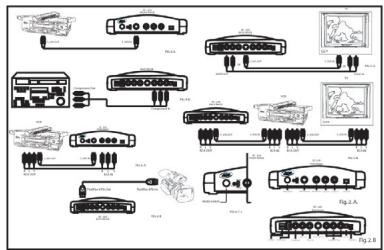
Connection Configurations:
PYRO A/V Link can be used in several ways depending upon your video conversion needs.
Analog Video Capture connected to PC or Mac
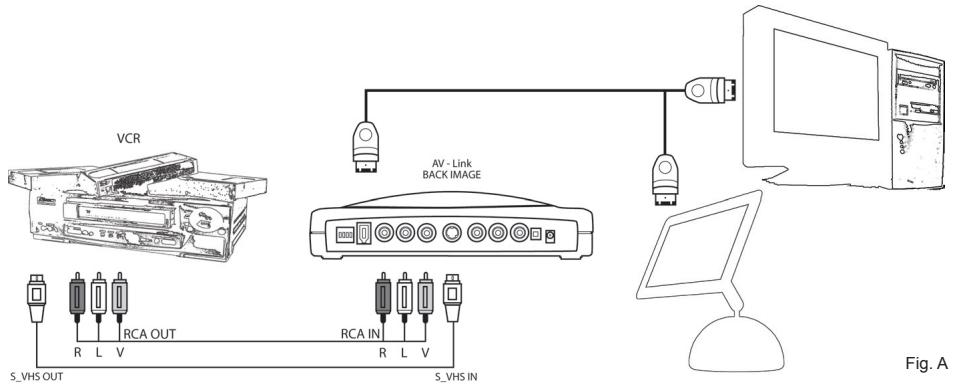
- Capture any Analog Video source to PC or Mac via the A/V link and a FireWire connection.
Export DV from computer to Analog monitor or video tape recorder
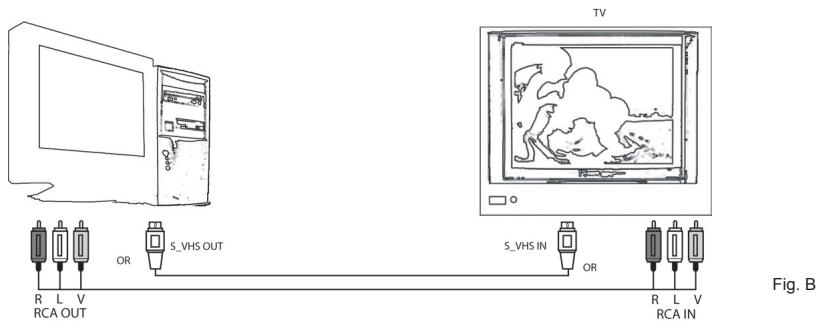
Publish to Tape: Export your video production from the video editors timeline out to a TV or Video Tape recorder.
Capture from a DV Camcorder
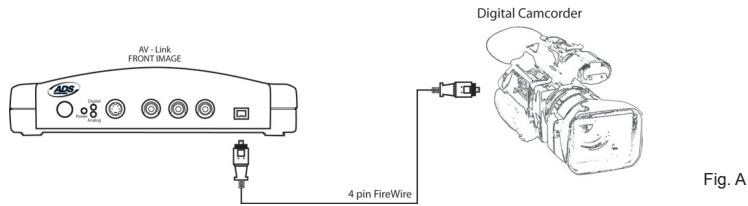
Easy desktop connection for your Digital camcorder. Complete device control, just as if you were directly connected to your 1394/FireWire host card.
Export DV to your Digital Camcorder
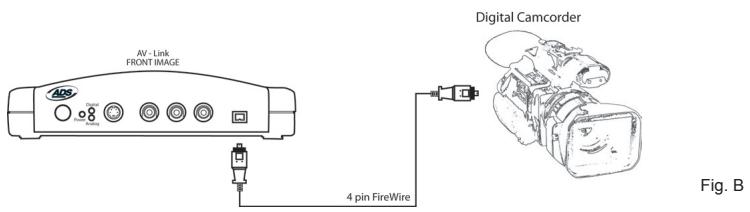
Publish to your Digital camcorder. Use A/V Link as an easy way to send edited video back to your DV camcorder.
Dub video from an analog device to a Digital recorder or from a Digital deck or camcorder to an analog video tape machine
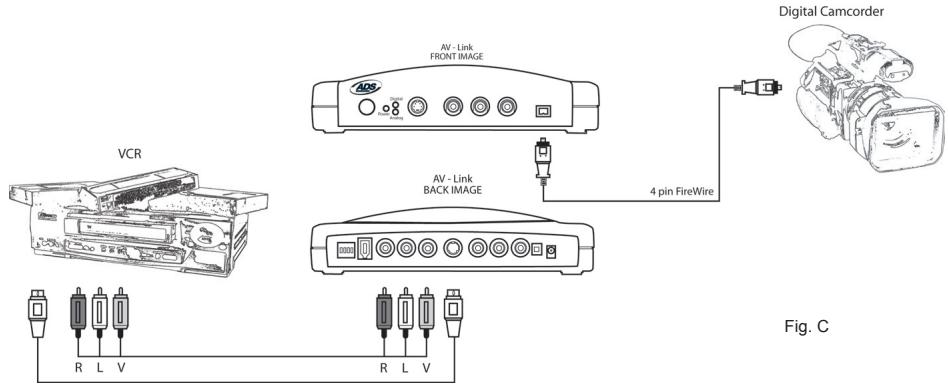
Use A/V Link without a computer to convert video content from digital to analog. A/V link can operate as a stand alone media converter. No computer required!
PYRO A/V Link Hardware Description
PYRO A/V Link
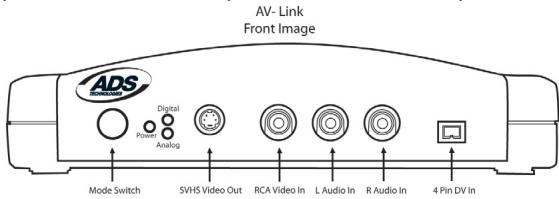
Front Image
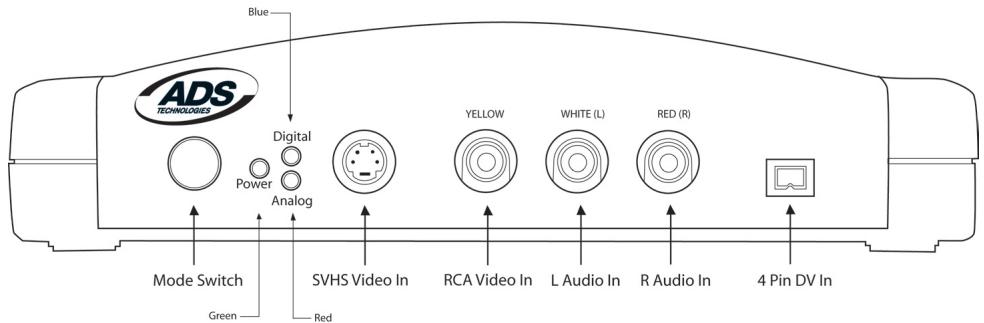
Front Panel:
The front of the PYRO A/V Link is for all of the audio and video INPUT Connectors, LED displays and Mode Switch.
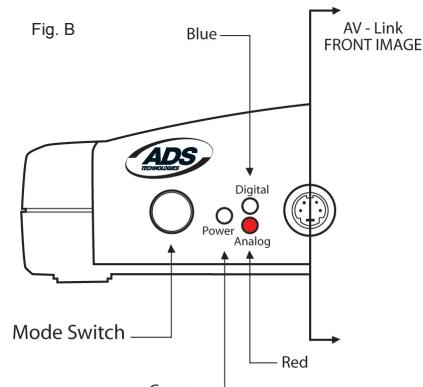
Mode Button - Switches from DV capture or Analog Output.
The Blue LED will be on whenever video is being captured as DV whether the source is an analog video tape or your DV camcorder. The RED Analog LED will turn on when you are exporting DV to a VCR or other analog device.
LED:
Green:
Blue:
Red:
Power
DV Capture
Analog Export
Connectors:
S-VHS
Composite(RCA)
Right and Left Audio(RCA)
4 Pin DV
Input
Input
Input
Input
Rear Panel:
The back of the PYRO A/V Link is for all of the audio and Video Outputs with the exception of the Component Video inputs.
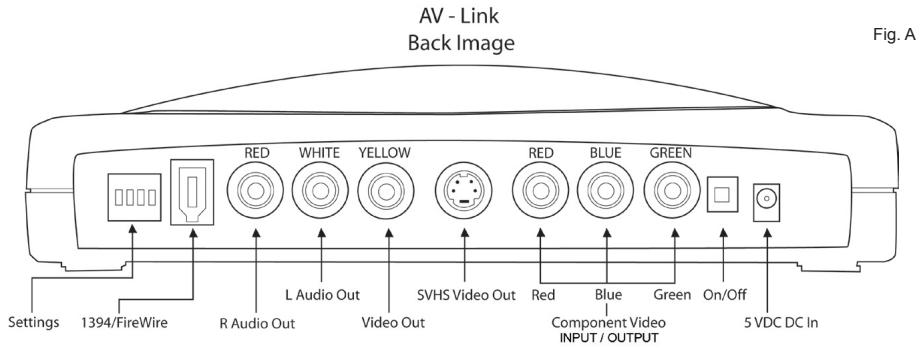
- The video input jacks are auto-sensing. Which ever video jack you connect (RCA, S-Video or Component) the jack with the active video source will automatically be selected.
- The video output jacks will automatically be active. In all configurations the RCA and S-Video jacks will always be simultaneously outputting video. This is true for video pass-through mode and exporting DV to Analog video mode.
- The Component Video jacks are dual purpose and bi-directional. You can capture from analog video sources via the component jacks and you can export DV to Analog video via the Component jacks. The jacks are auto-sensing and auto-switching. This means that if ANY video input jack is capturing analog video to DV, the Component jacks switch to video input mode. If you are exporting to Analog Video the Component jacks switch to component video export.
4 Position Dip Switch
| POSITION: | 1 | 2 | 3 | 4 |
| UP | PAL | See Next Page | See Next Page | Unlock Audio |
| DOWN | NTSC | See Next Page | See Next Page | Locked Audio |
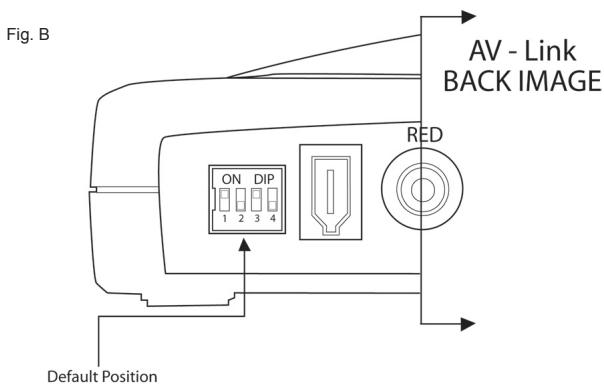
Switch 1 - TV Format:
Set this switch to match the television/video format for your country. Generally, North America, Japan and Taiwan are set to NTSC. Europe, Africa and Australia are set to PAL. See the back of the user guide for a complete listing of every country.
Switches 2 and 3 - DV Source / Operating System Selection:
The device is factory set to be most compatible to the 1394 timing for Windows XP. You can easily set the dip switches to match the timing of the device or operating system you are using.
| DV SOURCE / OPERATING SYSTEM | SWITCH 2 | SWITCH 3 |
| DV Camcorder | Down | Down |
| Windows 2000 | Down | Up |
| WinXP, Win98SE, WinME | Up | Down |
| Mac | Up | Down |
Switch 4 - Locked Audio:
Switch to Locked Audio mode to ensure that audio and video synch remain locked during video capture.
Audio is set to capture at 16-bit, 48 kHz.
6 Pin 1394/FireWire connection
Use the supplied 6 pin to 6 pin cable to connect the A/V Link to your PC or Mac. In a non-computer - analog to DV conversion setting, use the 6 pin cable to connect to another device.
Right and Left RCA Audio Outputs
Use the supplied A/V cables to connect audio outputs to your TV or video tape recording device.
Video Out (RCA)
Use the supplied A/V cables to connect the RCA Video output to your TV or video tape recording device.
S-VHS Out (Y/C 4 Pin Din)
Use the supplied S-VHS cable to connect the video output to your TV or video tape recording device.
More about Video Outputs
You may have both RCA and S-VHS connected and outputting video simultaneously. You can also use the outputs to preview video on a TV monitor during DV editing or during analog video capture.
Component Video
The Red, Green and Blue component video jacks allow for input/output of video from a component source. You can also connect a composite synch cable to the RCA Video input to allow for composite synch.
On/Off
Power On/Off switch
Power Jack - 5VDC input
This is a self powered device, meaning the unit will function only when power is applied. Use only the power supply included with PYRO A/V Link to power this device.
Getting Started - Windows
Minimum System Requirements:
Processor: 800 MHz CPU or faster
OS: Windows 98SE, WinME, WinXP or Win2000
RAM: 128 MB or higher (256 MB or higher for editing)
Hard Disk: 500 MB or higher Ultra DMA 5400 RPM or faster with DMA enabled (4 GB for every 18 minutes of video captured).
Monitor/Graphics: Resolution of 1024 x 768, 32 bit color, DirectX 8.1 or later
Sound: Standard Windows compatible sound card
1394 Port: OHCI-compliant 1394 card or built in port functioning properly.
Texas Instruments or Agere based 1394 host controllers are recommended.
Note: Most 1394 add-in cards are OHCI compliant including the ADS PYRO 1394 cards.
CD-ROM: For software installation
CD Burner: For burning Video CD's (VCD) or Super VCD (SVCD) disks
DVD Burner: For burning DVD disks
Windows CD: The Windows CD may be needed to load 1394 drivers if you are using Win98SE or WinMe.
Optimize your system for DV capture and editing:
It is highly recommended that you complete the following procedures to ensure smooth video capture.
1.) Make sure all of your drives are defragmented. This is done in Windows under Accessories/System tools. (Not required on the Mac)
2.) Make sure your drive had DMA enabled. This is done in Device Manager under Disk Drives. This procedure may require you to reboot after you have enabled DMA on your hard drive. (Not required on the Mac)
3.) If possible use a separate drive, even an external FireWire drive for saving captured video.
4.) Close all unnecessary programs and background tasks when recording or exporting video.
WINDOWS - Quick Start
1.) Connect A/C Power adapter
2.) Connect the 6 Pin 1394 cable between the PYRO A/V Link and computer. Connect directly to the 1394 Host port. Connecting through a 1394 Hub/Repeater is not recommended.
3.) WinXP and Win2000 will automatically recognize the device and install drivers. WinME and Win98SE may ask for drivers from the Windows CD.
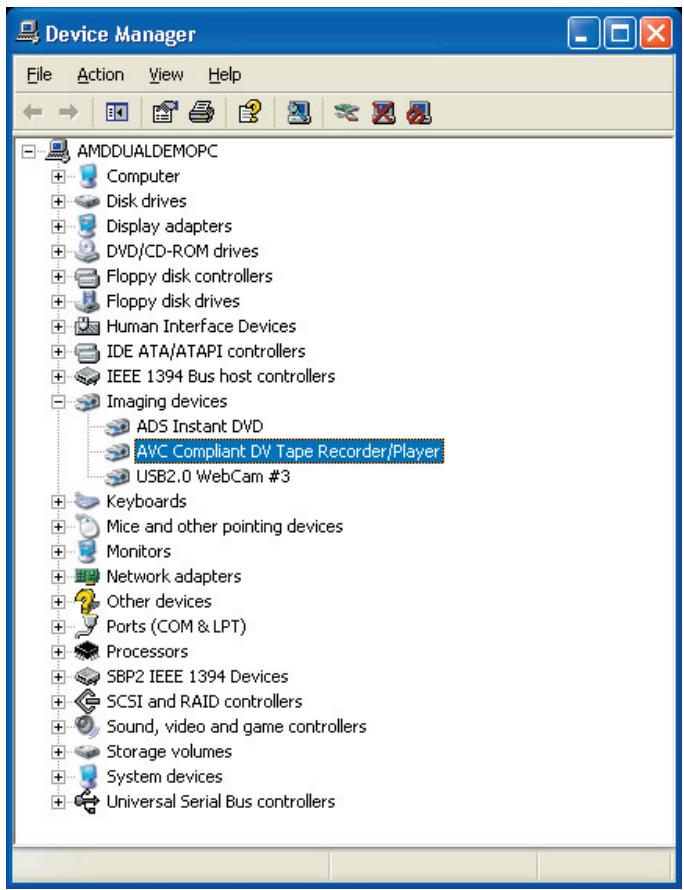
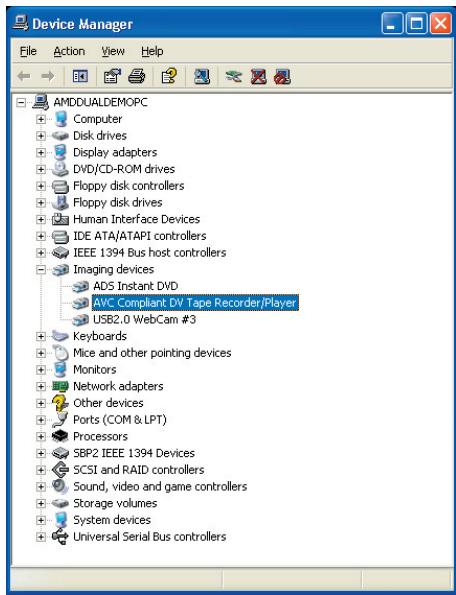
4.) Once the device drivers are installed the PYRO A/V Link will appear under Windows Device manager as an Imaging Device.
5.) Connect Audio/Video cables between your video devices and PYRO A/V Link
6.) Start your Video Editor application and you are ready to capture video
7.) Press Play on your video device.
8.) Press the Play button on your video editor's preview window to begin previewing video. Press Record, or Capture button to begin recording to your computer hard drive.
Windows Software:
The drivers necessary for the PYRO A/V Link to operate with a Windows based PC are built into the operating system. Once you plug in the device, Windows will recognize it and the device will appear as an imaging device in Device Manager. If you already own video editing software such as Adobe Premiere, you are ready to connect your video devices and start capturing video.
For Windows Users who don't have any video editing software, we provide a CD that includes Ulead's VideoStudio software. This software allows you to capture, edit, export video, save as MPEG-1, MPEG-2, streaming video or even burn a VCD, SVCD or DVD disk.
The PYRO A/V Link can be used with any video editing software that is compatible with DV. We have tested with Adobe Premiere, Avid DV Express, Ulead DVD Workshop, Ulead Media Studio Pro 6.5, Vegas Video, ArcSoft ShowBiz, Magix Video Deluxe 2.0 and we continue to test with other video editors on the market.
Getting Started - Mac
Minimum System Requirements:
Processor: 400 MHz or faster
OS: Mac OS 9.0.4, OSX (Not in Classic Mode), OSX 10.02 (Jaguar)
RAM: 128 MB or greater
Monitor/Graphics: Resolution of 1024 x 768, 32 bit color
Sound: Standard Macintosh sound system
1394 Port: Standard built-in 1394 port or OHCI-compliant 1394 add-in card Note: Most 1394 add-in cards are OHCI compliant including, the ADS PYRO 1394 cards.
CD Burner: For burning Video CD's (VCD) or Super VCD (SVCD) disks
DVD Burner: For burning DVD disks (iDVD, DVD Studio Pro or Instant DVD for Mac required).
Note: Apple iMovie is included with systems which include built-in FireWire ports.
Optimize your system for DV capture and editing:
It is highly recommended that you complete the following procedures to ensure smooth video capture.
1.) If possible use a separate drive, even an external FireWire drive for capturing video.
2.) Close all unnecessary programs or disable extensions not required for recording or exporting video.
MAC - Quick Start
1.) Connect Power
2.) Connect the 6 Pin 1394 cable between the PYRO A/V Link and computer. Connect directly to the 1394 Host port. Connecting through a 1394 Hub/Repeater is not recommended.
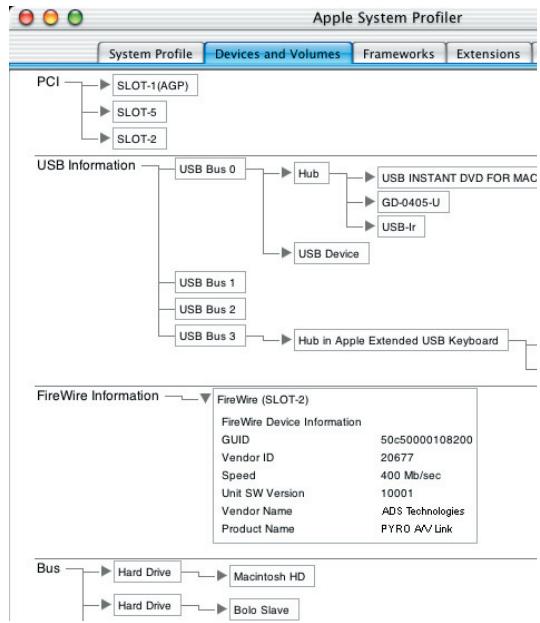
3.) Your Mac will automatically recognize the device.
4.) Once the device has been detected PYRO A/V Link will appear under the Profiler as shown on this page.
5.) Connect Audio/Video cables between your video devices and PYRO A/V Link
6.) Start your Video Editor application and you are ready to capture video
7.) Press Play on your video device.
8.) Press the Play button on your video editor's preview window to begin previewing video. For iMovie, press Import to begin recording.
Software:
No software is included with PYRO A/V Link for the Mac platform. No device drivers are required for proper operation and all Mac computers that have shipped with built-in FireWire ports include iMovie for capturing, editing and exporting video from a 1394 device, such as PYRO A/V Link. PYRO A/V Link is also compatible with other video editing software such as Final Cut Pro, Avid Express DV and Adobe Premiere
Computer Connected Configurations
Ready to Capture Video
DV Video is great because it offers superior quality and is easily edited. The only problem is how can you get all of your non-DV content converted into the DV format through your FireWire connection. PYRO A/V Link lets you do that quickly and easily. You can connect many different video devices to the PYRO A/V Link such as your old 8mm camcorder, your VCR, DVD Player, a TV to preview captured video or even a digital camcorder. Over the next few pages we will demonstrate several possible configurations.
Connecting an analog Video source
We have supplied you with most of the audio/video cables you will need for capturing from a variety of video sources. In some cases you may need to use the custom cable supplied by your camcorder manufacturer or you may need to purchase extra cables depending upon your desired A/V configuration.
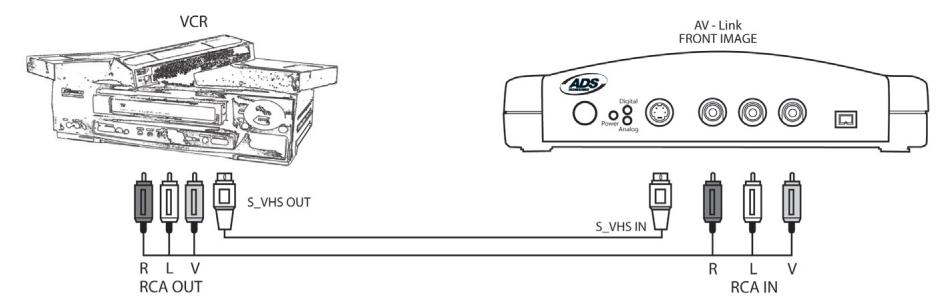
1.) Use the supplied RCA to RCA cable to connect between your analog source and the PYRO A/V Link. This cable has 3 RCA connectors at each end.
Yellow = Video
Red = Right Audio
White = Left Audio
Yellow = Video
Red = Right Audio
White = Left Audio
Note: If your camcorder does not have three separate RCA Jacks, use the custom cable supplied with the camcorder.
1.) If your camcorder, VCR or other video device includes an S-VHS connector, use the supplied S-VHS cable to connect between your video device and PYRO A/V Link for improved quality.
2.) If your Video tape machine, DVD player or other video device provides Component video outputs, use a component video cable (not supplied) to connect between your video device and PYRO A/V Link. Component video will provide the best quality video.
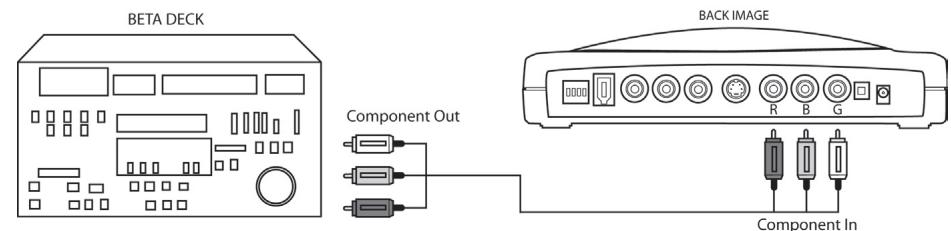
* Component cables not included.
- If you have BNC Connectors as component out, you can convert them with component to RCA Connectors.
Capturing Video with your Video Capture/Edit Software
When powered up the PYRO A/V Link is ready to convert an analog video source into DV so you can capture video to your computer via your capture/edit software.
Video Source:
PYRO A/V Link will auto detect which video input connections have a video source and automatically use that source. Use the best video input source you have available, Component being best, S-VHS second best and RCA (Composite) the lowest quality video source.
Previewing Video in Video Editing Software:
With most video editing software, the interface includes a video preview window. In some cases you must select the Movie Capture Window (Adobe Premiere).
1.) Start your Video Editing software application.
2.) Locate the video Preview Window or Movie Capture Window.
3.) Once you have the video preview or capture window open, press PLAY on your video playback device.
4.) Click PLAY on the video editing software preview window. Now you will see and most likely hear (depending on the software) your video playing on the computer.
5.) Click the RECORD button on the video editing software and you will begin to record DV to your computer hard drive.
Connecting an external TV for Simulation Video Preview
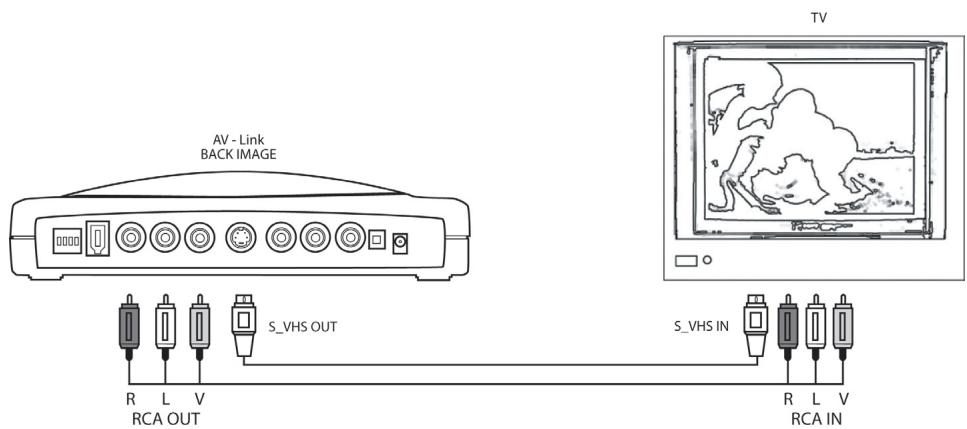
PYRO A/V Link allows you to preview video while being captured and edited so you can see your results full screen on the TV.
1.) Connect a video cable from the RCA or S-VHS OUT jacks on the back of the PYRO A/V Link and into an external video input (RCA or S-VHS) on your TV.
2.) Connect an audio cable to the Left and Right RCA audio OUT jacks on the back of the PYRO A/V Link to the external audio inputs (RCA) on your TV.
3.) Apply Power to the TV and switch the TV to accept the external video source. (Check your TV manual if you are not sure how to do this.)
Connecting for Analog Record and Preview at the same time
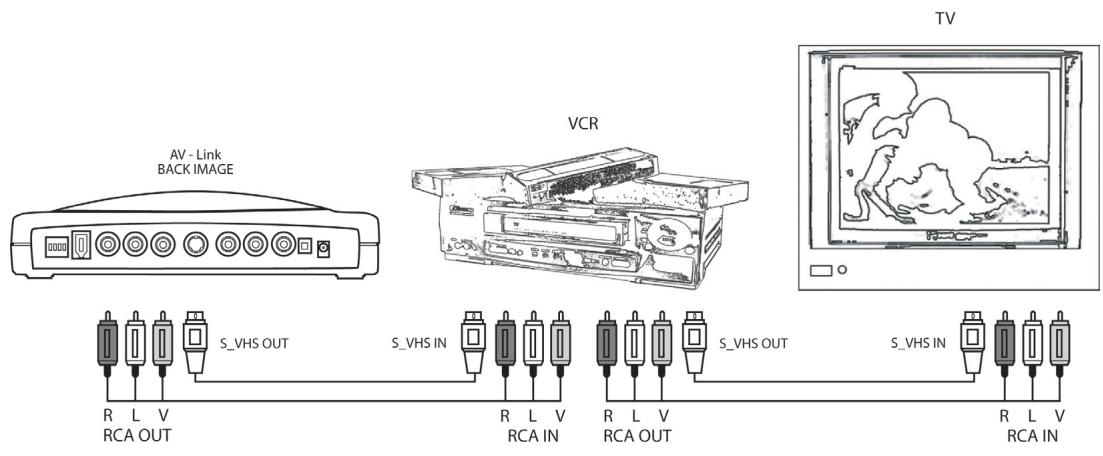
You can preview and record video to a VCR at the same time as long as the VCR allows for audio and video to be passed through it. Check and test your VCR to ensure that has audio and video inputs and outputs and that it allows pass through of audio and video while recording.
1.) Connect a video cable from the RCA or S-VHS OUT jacks on the back of the PYRO A/V Link and into the Video In on your VCR.
2.) Connect an RCA or S-VHS cable to the Video Out on your VCR to an external video input (RCA or S-VHS) on your TV.
3.) Connect an audio cable to the Left and Right RCA audio OUT jacks on the back of the PYRO A/V Link to the audio inputs (RCA) on your VCR.
4.) Connect an audio cable between the Left and Right RCA OUT on your VCR to the Audio INPUTS on your TV.
5.) Apply Power to the VCR – You may have to change the TV/VCR switch on the VCR to allow pass through.
6.) Apply Power to the TV and switch the TV to accept the external video source. (Check your TV manual if you are not sure how to do this.)
The only non-valid connection configuration for video pass-through would be RCA or S-Video In and Component Video out. This is because the component jacks are auto-switching and auto-sensing. If you are bringing analog video in, the Component Jacks switch to inputs, if you are exporting video out the Component Jacks switch to video output.
Connecting for Capture from DV Camcorder
If you are using a Digital Camcorder to capture and or export video you can do this by simply connecting the Digital camcorder directly to the 1394 port on your computer.
For your convenience the PYRO A/V Link provides a 4 pin DV In/Out connection, thus acting as a 1394 desktop Hub and allowing easier connection to your computer.
1.) Connect a 4 pin to 4 pin DV cable between the DV In/Out connection on your digital camcorder to the 4 Pin DV IN port on the front of the PYRO A/V Link.
2.) Turn your Camcorder on to VCR/VTR mode.
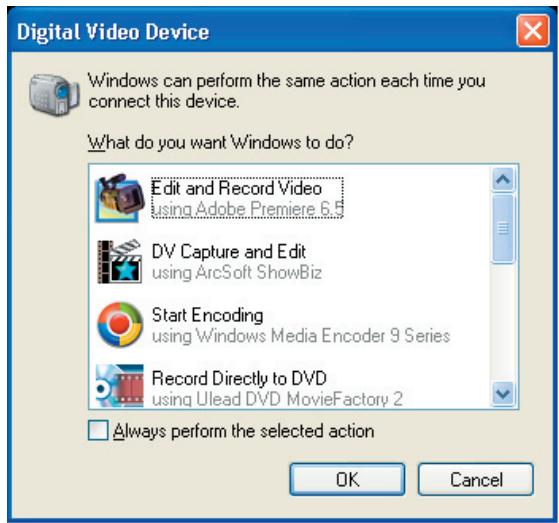
3.) The Digital Camcorder will be recognized by the computer and Windows(WinXP) will show all compatible software that can be used with the digital camcorder (see Box). Select the video capture or editing application you want to use.
4.) If this selection box does not appear, Start your Video Editing software the old fashion way.
Previewing Video in the Video Editing Software:
With most video editing software, the interface includes a video preview window. In some cases you must select the Movie Capture Window (Adobe Premiere).
1.) Locate the software video Preview Window or Movie Capture Window.
2.) Once you have the video preview or capture window open click PLAY on the video editing software preview window. This will send a signal to your digital camcorder to enter PLAY mode and you will see and most likely hear (depending on the software) your video playing on the computer.
3.) Click the RECORD button on the video editing software and you will begin to record DV to your computer hard drive.
Device Control Note: Depending upon the video editing software, there may be extra steps to select your camcorder as the 1394 device to be used for capture. Once your camcorder is selected as the 1394 device, you can use software device control just as if you were directly connected to the computers 1394 port (See video editing notes in appendix).
Exporting Video from a Video Editor to an Analog Device
Now that you have captured and edited your video you might want to export it out of your computer and on to tape so you can easily publish or share your video production with friends, family or even paying customers!
1.) Connect a video cable from the RCA or S-VHS OUT jacks on the back of the PYRO A/V Link and into an external video input (RCA or S-VHS) on your VCR
Note: S-VHS provides higher quality video recording than an RCA cable. S-VHS is recommended if your camcorder or VCR offers this connection.
2.) Connect an audio cable to the Left and Right RCA audio OUT jacks on the back of the PYRO A/V Link to the external audio inputs (RCA) on your VCR.
Note: If you are recording back to a camcorder, you may need to use the cables provide by the camcorder manufacturer.
3.) Apply Power to the VCR and press RECORD just before you begin exporting video from your computers video editing software.
Note: Each video editing software program will offer a slightly different method for exporting video. Some software will allow export from timeline without rendering the video and others will require that you "Save" your video and then "Print to Tape". Please check the user guide for your video editing software to learn how to export video.
Exporting to a Digital Camcorder
If you want to export from your video editor to a digital camcorder, you can accomplish this by connecting the camcorder directly to the 1394 port. However, you can also use the PYRO A/V Link as your 1394 connection and export DV through the A/V Link and into your digital camcorder.
The setup is the same as if you used A/V Link as your Digital camcorder capture connection.
1.) Connect a 4 pin to 4 pin DV cable between the DV In/Out connection on your digital camcorder to the 4 Pin DV In/Out port on the PYRO A/V Link.
2.) Turn your Camcorder on to VCR/VTR mode.
3.) The Digital Camcorder will be recognized by the computer.
4.) Start your Video Editing software, Use the export or Print to Tape function in the software to export video from your computer and record in the digital camcorder.
Non-Computer Configurations
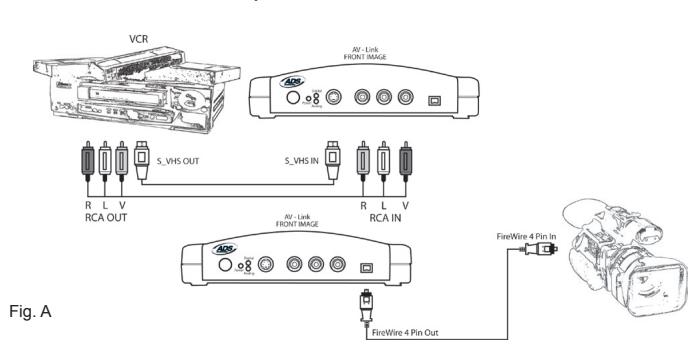
PYRO A/V Link can operate as a stand a lone conversion device between analog and digital recording devices. This means you can convert analog content into DV content via a direct conversion to a DV deck or a Digital camcorder without connecting either device to a computer
Connecting for Analog Video to Digital Conversion
1.) Apply Power to the PYRO A/V Link device.
2.) Connect the RCA audio and video cables between your analog video device and the RCA audio and video inputs on the front of the PYRO A/V Link unit.
3.) Use the S-VHS or Component video inputs if your analog video device has these connections for the best possible video quality.
4.) Use a 6 Pin to 4 Pin 1394 cable to connect from the A/V Link to your digital camcorder or DV deck. Connect the 6 pin end of the cable to the 6 pin 1394 connector on the rear of the PYRO A/V unit and connect the 4 pin end to your digital camcorder or DV Deck.
5.) Use the MODE SELECTOR SWITCH on the front of the PYRO A/V Link device to switch to ANALOG MODE. In this mode, the RED LED should be lit.
6.) Press the RECORD button on your digital camcorder or DV deck just before pressing the PLAY button on your analog video device (VCR or Camcorder).
Add a Preview Monitor to this Configuration
You can easily connect a TV to the audio video output jacks on the PYRO A/V Link to monitor your video dubbing process.
1.) Connect an RCA or S-VHS video cable between the PYRO A/V Link and your TV RCA or S-VHS Video input jacks.
2.) Connect Right and Left audio cable between the PYRO A/V Link Right and Left audio jacks and your TV audio inputs.
3.) Switch the TV to accept an external video input.
Connecting for Digital to Analog Conversion
If you have a digital camcorder you can use the PYRO A/V Link to convert the digital content into an analog video signal so it can be recorded on your VCR.
1.) Connect your digital camcorder or DV deck to the 4 pin DV In jack on the front of the PYRO A/V Link.
2.) Connect a video cable from the RCA or S-VHS OUT jacks on the back of the PYRO A/V Link and into an external video input (RCA or S-VHS) on your VCR
Note: S-VHS provides a higher quality video recording than an RCA cable. S-VHS is recommended if your camcorder or VCR offers this connection.
3.) Connect an audio cable to the Left and Right RCA audio OUT jacks on the back of the PYRO A/V Link to the external audio inputs (RCA) on your VCR.
Note: If you are recording back to a camcorder, you may need to use the cables provide by the camcorder manufacturer.
4.) Use the MODE SELECTOR SWITCH on the front of the PYRO A/V Link device to switch to DIGITAL MODE. In this mode, the BLUE LED should be lit.
5.) Apply Power to the VCR and press RECORD just before you press PLAY on your digital camcorder.
Add a Preview Monitor to this Configuration
You can preview and record video to a VCR at the same time as long as the VCR allows for audio and video to be passed through it. Check and test your VCR to ensure that it has audio and video inputs and outputs and they allow pass through of audio and video while recording.
1.) Connect a video cable from the RCA or S-VHS OUT jacks on the back of the PYRO A/V Link and into the Video In on your VCR.
2.) Connect an RCA or S-VHS cable to the Video Out on your VCR to an external video input (RCA or S-VHS) on your TV.
3.) Connect an audio cable to the Left and Right RCA audio OUT jacks on the back of the PYRO A/V Link to the audio inputs (RCA) on your VCR.
4.) Connect an audio cable between the Left and Right RCA OUT on your VCR to the Audio INPUTS on your TV.
5.) Apply Power to the VCR – You may have to change the TV/VCR switch on the VCR to allow pass through.
6.) Apply Power to the TV and switch the TV to accept the external video source. (Check your TV manual if you are not sure how to do this.)
Installing the Bundled Software CD
1.) Insert the PYRO A/V Link CD into your CD-ROM drive.
2.) The Auto-run screen displayed here will appear on your screen.
3.) This Auto-Run requires Apples Quick Time player to run. If you do not have Quick Time installed, it will automatically begin installing Quick Time on your system.
4.) There are 4 Selections:
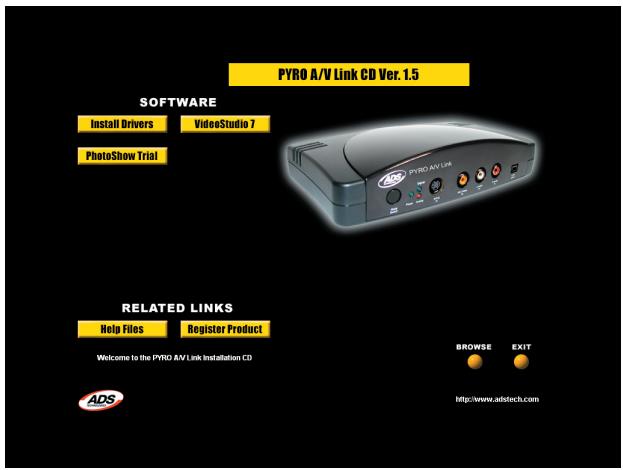
a. Install Driver
b. VideoStudio
c. PhotoShow (Trial software)
a.) Install Drivers – Driver installation is required ONLY if you are running Win98SE. This driver is actually a patch to the Microsoft 1394 software in Windows 98SE. If you have Windows ME, WinXP or Win2000 – skip this Step.
b.) VideoStudio - Click the VideoStudio button and the VideoStudio installer will open. See page 38 for full VideoStudio 7 SE DVD installation instructions.
c.) PhotoShow – PhotoShow is a fun and easy way to make rich, music videolike shows with your digital photos. Experience your photos like never before! When you are done, share your PhotoShow online, burn it to a CD, use it as your screen saver or even publish it on your own web site.
Using VideoStudio Software
How VideoStudio works
VideoStudio follows a step-by-step paradigm so that editing tasks remain uncomplicated from start to finish. VideoStudio also offers more than a hundred transition effects, professional tilting capabilities and simple soundtrack creation tools. Learn in seconds, create in minutes.
VideoStudio breaks up your movie into separate tracks, giving you broad creative freedom. Changes to one track do not affect others.
After transferring footage from your camcorder, you can arrange scenes, apply special effects, overlay images, add animated titles, sync in a voiceover narration, and use background music from your favorite CDs in formats such as WAV and MP3. All these can be done using drag-and-drop, cut-and-paste, or select-and-apply operations.
All the tracks in your movie are then organized into a video project file (.vsp), which contains all the video and audio information on how your movie is put together.
When everything is all set to go, your computer collects all information needed to create your final movie file. This process is called rendering. You can then output and distribute your movie as a DVD/VCD/SVCD title, streaming Web page video, or an e-mail attachment. You can also record your movie back to your camcorder or VCR.
Hardware checkup before using VideoStudio
To ensure that your video production runs smoothly and trouble-free, click Control Panel: Systems - Device Manager and check if your devices are working properly in accordance with your Operating System (O/S).
DV IEEE 1394 capture card
The following Windows operating systems support the IEEE 1394 capture card. Always remember to turn on your PYRO A/V Link/DV camcorder connected to the IEEE 1394 interface so that it can be detected as image device or sound, video and game controller.
Windows 98
Windows 98 supports the Texas Instruments DV driver only but does not provide it. Search the drivers (if bundled) that come with the IEEE 1394 card. Check that the following devices are working properly:
1394 Bus Controller
Sound, video and game controllers: 1394 camcorder
Windows 98 Second Edition / Windows 2000
Windows 98 Second Edition and Windows 2000 include the Microsoft DV driver and still support the Texas Instruments DV driver. Check that the following devices are working properly:
1394 Bus Controller
- Image Device: Microsoft DV Camera and VCR (For Microsoft DV driver only.)
Sound, video and game controllers: 1394 camcorder (For Texas Instruments DV driver only.)
It is strongly recommended to use the Microsoft driver in Win ME and Win 2000.
PYRO A/V Link will be listed as AVC Compliant DV Tape Recorder/Player
Windows Millennium Edition (ME)
Windows Me fully supports the IEEE 1394 card. Check that the following devices are working properly:
1394 Bus Controller
61883 Device Class
- AVC Device Class
- (Brand name) DV Camcorder: The brand name depends on the DV camcorder connected to the IEEE interface card.
Windows XP
Windows XP fully supports IEEE 1394.
- PYRO A/V Link will be listed as AVC Compliant DV Tape Recorder/Player under the Device Manager.
To run VideoStudio under Windows XP, check that the following devices are working properly:
1394 Bus Controller
61883 Device Class
- AVC Device Class
- (Brand name) DV Camcorder: The brand name depends on the DV camcorder connected to the IEEE interface card.
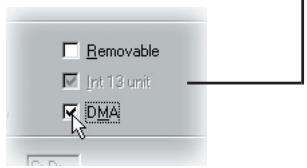
For Windows 98 and Windows Me, select the DMA option in Device Manager: Disk drive Settings Tab. In Windows 2000, the DMA option is hidden but it is always enabled. DMA avoids possible drop frame problems later when you are capturing video.
Note: In addition to commonly used Texas Instruments and Microsoft DV drivers, there are other drivers available. Consult your camcorder's manual for suitable drivers.
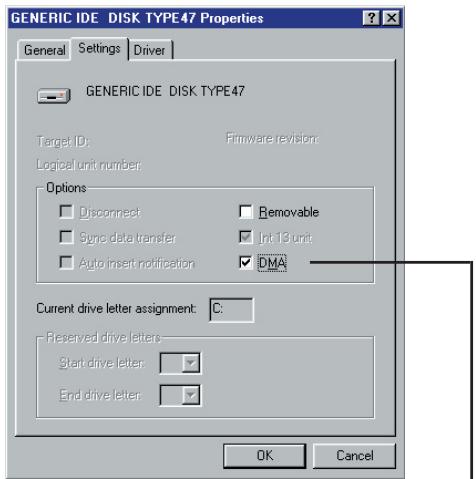
Settings Tab after clicking Properties when a hard drive is selected from Control Panel: System - Device Manager
Installing and running VideoStudio
To install VideoStudio:
- Place the A/V Link CD into your CD-ROM drive. Click on the VideoStudio icon to load the VideoStudio Installation screen.
- When the Setup screen appears, follow the instructions to install VideoStudio onto your computer.
Note: If the Setup screen does not appear after loading the CD, then you can manually start it by double-clicking the My Computer icon on your desktop, then double-clicking the icon for the CD-ROM drive. When the CD-ROM window opens, double-click the Setup icon.
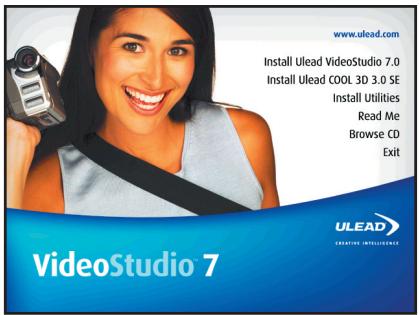
VideoStudio installation screen
Please install also the following applications, because they are very important in making digital video work well on your computer. The installation program will walk you through installing:
- QuickTime
- Windows Media Format
RealPlayer - Acrobat Reader
Note: Skip this step if you already have newer versions of the above supporting applications installed in your PC.
To run VideoStudio:
- Double-click the VideoStudio icon on your Windows desktop.
OR
- Select the VideoStudio icon from the VideoStudio program group on the Windows Start menu.
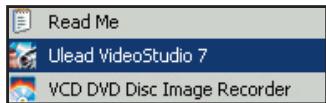
Running VideoStudio from Windows Start menu
Configuring VideoStudio
PYRO A/V Link allows you to capture video from camcorders, VCRs, and VCD/DVD Players into the high-quality DV format. To ensure a smooth installation and setup with VideoStudio 7, please follow the steps outlined below.
1.) Turn on your PYRO A/V Link and be certain that it has been properly detected by the Windows Device manager as outlined on the previous pages.
2.) Connect your video source to the audio and video jacks on A/V Link.
3.) Check your video source to ensure it is powered on and that you have a tape of disk playing video.
4.) Click the Capture Step at the top of the VideoStudio program. You should see "PYRO A/V Link" listed in the Source field in the Capture Settings panel.
5.) DV should be the video capture format. If you wish to capture as MPEG video, read the section on "Direct Capture of MPEG" later in this manual.
6.) Click on File.
7.) Then click "Change Capture Plug-in" – Be sure that Ulead Direct Show Capture Plug-in is selected
8.) Click PLAY on the Preview Window and you will see your video previewing.
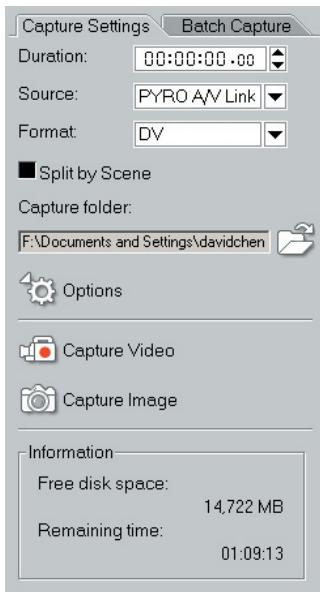
Check that your device is listed under Source
Note: PYRO A/V Link supports many video input sources. PYRO A/V Link has the ability to automatically sense and select the active video input whether it be Composite (RCA), SVideo (S-VHS) or Component video inputs. Video will be captured from what ever video source is connected with a live video signal.
Using DV Pass Through for Digital Camcorders
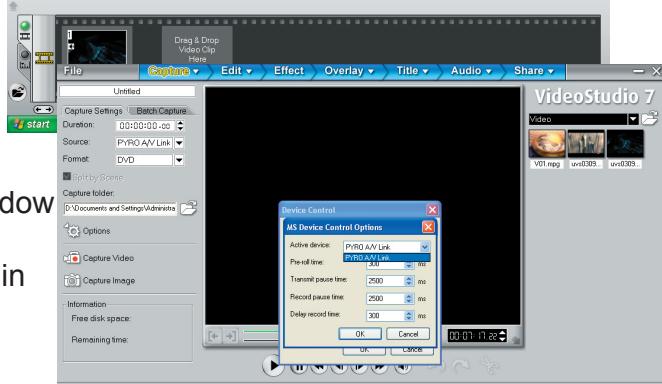
If you wish to connect your Digital Camcorder to the 4 Pin 1394 port on the front of the PYRO A/V Link, you will need to make some additional settings to ensure that you can control your camcorder via the Video Studio software. Device control will include Start, Stop and Record functions on your digital camcorder.
Follow the steps below to properly setup your Digital Camcorder for 1394
pass-through with PYRO A/V Link.
1.) Click on "File"
2.) Click – “Select Device Control”
3.) Select the camcorder driver; "MS 1394 Device Control"
4.) Then click on "Options"
5.) Select your Digital Camcorder as the active device
6.) Click "OK" to close the dialog boxes
You now should now see your digital camcorder listed in the Source window on the capture settings panel.
7.) Be sure your camcorder is turned on and set to VCR/VTR mode
8.) Press "Play" below the Preview Window and your camcorder should begin playing and video will begin playing in the preview Window
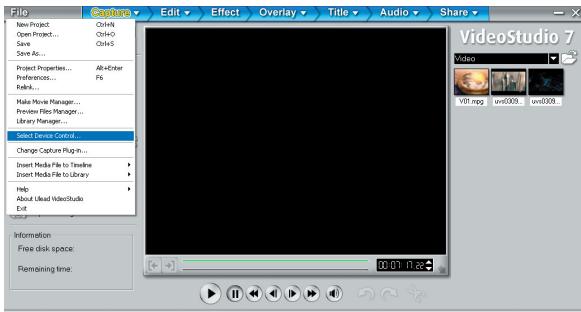
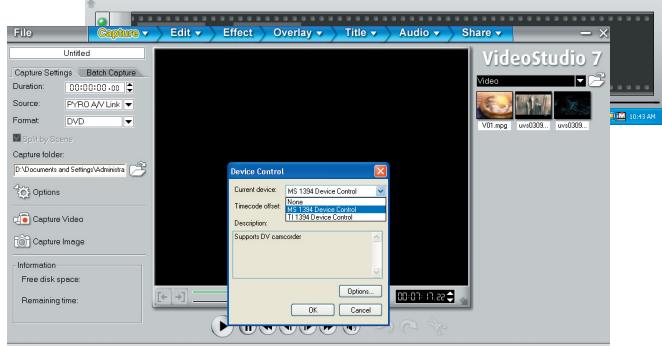
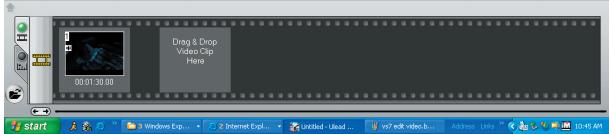
Getting around VideoStudio
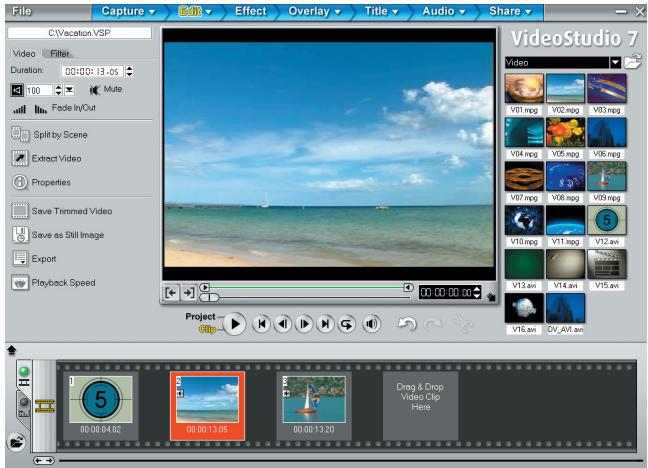
The VideoStudio interface has been designed to make the sometimes complicated task of editing movies on your PC intuitive and enjoyable. This illustration shows the major components of the program.
Options Panel
Contains controls, buttons, and other information that you could use to customize the settings of the selected clip. The contents of this panel change depending on the step you are in.
Preview Window
Shows the current clip, video filter, effect, or title.
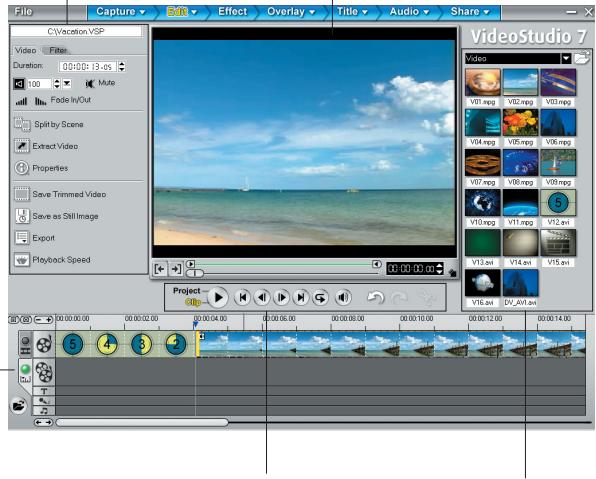
Timeline
Displays all the clips, titles, and effects included in your project. Select the media track that contains the clip you want to edit.
Navigation Panel
Use these buttons to go through a selected clip for precision editing or trimming.
Library
Stores and organizes all of your media clips.
The Options Panel
The Options Panel changes depending on the program's mode and the step or track you are working on. The Options Panel may contain one or two tabs. Information in each tab vary depending on the selected clip.
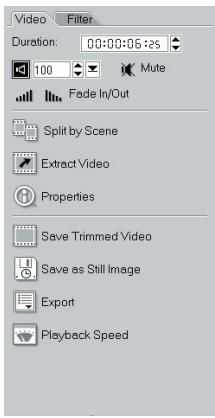
Options Panel in Edit Video Mode.
Capturing still images
In addition to video, VideoStudio also allows you to capture still images. The image format can be BMP or JPEG, and the size depends on its source video. To choose your image format, click File: Preferences. In the Preferences dialog box click the Capture Tab and set the format.
To capture still images:
- Connect your camcorder or VCR to your capture card. Switch it on and set it to Play (or VTR / VCR) mode. Check your device manual for specific instructions.
- Open a new project.
- In the Capture Step, click Play in Navigator.
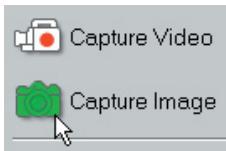
- When you get to the part of the video you want to record, click Capture Image on the Capture Settings Tab in the Options Panel.
VideoStudio Manual and other Help Resources
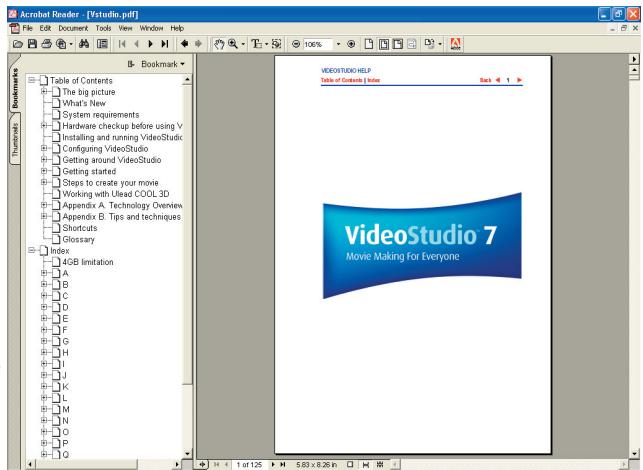
We hope that the information that has been provided you has got you up and running with PYRO A/V Link and Video Studio. This "Getting Started with VideoStudio" is a very abridged version of the VideoStudio manual. VideoStudio has many features and capabilities; some have yet to be covered. To learn more step by step procedures, you can read the full on-line manual that is in Acrobat reader format.
Help and Instructions (F1)
At any time you can press the F1 key on your keyboard and Video Studio help will pop up. You can read tips and techniques or read step by step procedures.
Full Manual
The Full manual is located on the PYRO A/V Link CD:
1.) Insert CD and when the Auto-run menu pops up, Click on Video Studio icon.
2.) On the Video Studio Auto-run screen, Click Browse CD.
3.) An file explorer window will open, double click on the "Document" folder and then double click on the Manual folder.
4.) If you do not have Adobe Acrobat installed, click on the Acrobat folder and install the Acrobat Reader.
Detailed Product Specifications
- Capture Resolution:
。 NTSC: 720 x 480 @ 30 frames per second
PAL: 720 x 576 @ 25 frame per second
- Capture in DV video format
- Audio capture in 48KHz (16 Bit)
- Power On/Off button
- Mode Selector switch - Analog or Digital switch
Inputs:
Video
RCA, S-VHS, Component Video
4 Pin 1394 connector
Audio
Right and Left RCA
- Outputs:
Video
RCA, S-VHS, Component Video
6 Pin 1394 Connector
Audio
Right and Left RCA
Product Name:
PYRO A/V Link
Part Number:
API-550
Trouble Shooting
Video will not Preview in VideoStudio or other video editing software
Check and Make sure that the PYRO A/V Link is connected properly to your computer. To check if PYRO A/V Link is recognized please go to page 15 of this manual.
VideoStudio will not transcode DV to MPEG2 properly, dropped frames etc.
This problem is mostly related to lack of SYSTEM RESOURCES. Your computer might not be fast enough, your hard drive might not be optimized (defragged), your video card might not be AGP Etc. Real Time DV to MPEG2 transcoding requires a lot of horsepower. ADS Technologies guarantees continuous DV to MPEG2 Transcode for up to 2.5 Hours on a P4, 1.8GHz Machine.
VideoStudio or my Video Capture Application hangs for awhile after I stop capturing
This might happen in really long captures. This is normal. Remember that you are capturing and manipulating files in the Gigabytes range. Stop the capture and wait several seconds, your capture software or VideoStudio should go back to normal.
Selecting PAL as your template results in a video captured as NTSC
Restart VideoStudio or your video capture application. Select PAL again. This should fix the problem.
Product Overview - German
PYRO A/V Link
Hochqualitative Analog-zu-DV Video Konverter
Connection Configurations:
ArticleNumber: API-550
Fehlerbehebung
Capturer, Monter, Exporter
Connection Configurations:
Exportation analogue
Connecteurs :
S-VHS
Entrée
Composite (RCA)
Entrée
RAM: 128 MB or higher (256 MB or higher for editing)
Captar, editor, exportar
Connection Configurations:
Service & Warranty Information
Service:
If you require assistance with the installation, operation, or application of your ADS Technologies, Inc. product there are several options available to you as described in the technical support section of this manual. The ADS Technologies technical support and customer service staff can aid in solving many problems. Our technical support department is available to repair any ADS Technologies product. You or your dealer must return products to our factory for repair or warranty replacement.
Return/Replacement:
Each individual computer store or dealer sets product returns policies for their customers.
ADS Technologies, Inc. cannot be responsible for the actions or policies set by our dealers. If you desire to return the product for a refund, you must get the refund from the dealer or store you purchased the product from. If you purchased the product directly from ADS please see the
"Terms and Conditions of Sale" on the reverse side of your sales invoice.
Returns to ADS Technologies, Inc. are for repair or warranty replacement only. If you need to return product to ADS Technologies, Inc. for repair or replacement you must follow these steps:
-
Call our Technical Support department at (562) 926-4338 to obtain a Return Merchandise Authorization (RMA) number.
-
The RMA number is valid for 30 days.
-
Ship the product to the ADS factory with the RMA number marked on the inside and outside of the package. If there is no RMA number on the package or the RMA number has expired, the shipment will be refused. ADS will not be liable for lost or mis-shipped products.
-
Replacement product cannot be shipped to you until the defective product has been received by ADS.
-
Once the product is received at the factory it will be tested and then repaired or replaced.
-
Turn around time is approximately one week. A repaired or replacement product will be shipped back to you.
Warranty:
This ADS Technologies, Inc. product comes with a One (1) year hardware warranty. ADS Technologies, Inc. (ADS) warrants this product against defects in material and workmanship for a period of One (1) year from the date of original purchase from ADS or an authorized ADS dealer. This warranty applies only to the original purchase of the product and is not transferable. This warranty does not cover any incompatibilities due to the user's computer, hardware, software or other related system configuration in which the product interfaces. Proof of purchase will be required before any warranty consideration by ADS occurs.
This warranty does not cover any damage caused by negligence, non-authorized modifications, or parts installed without prior written permission from ADS.
This warranty does not apply if the product has been damaged by accident, abuse, or misapplication, nor as a result of service to the product by anyone other than ADS.
If your ADS product is not in working order, your only recourse is repair or warranty replacement, as described above. UNDER NO CIRCUMSTANCES will ADS Technologies, Inc. be liable for consequential damages, including but not limited to any lost savings, lost profits, or any other damages, caused by the use of any ADS Technologies, Inc. product or inability to use the product, even if the dealer or ADS Technologies, Inc. has been advised of such liability or other claims. This includes damage to property and, to the extent permitted by law, damages for personal injury. This warranty is in lieu of all other warranties including implied warranties of merchantability and fitness for a particular purpose.
FCC Information
Federal communications Commission Radio Frequency Interference Statement
Note: This equipment has been tested and found to comply with the limits for a class B digital device, pursuant to Part 15 of the FCC Rules. These limits are designed to provide reasonable protection against harmful interference when the equipment is operated in a residential installation. This equipment generates, uses and can radiate radio frequency energy and if not installed and used in accordance with the instruction manual may cause harmful interference to radio communications. However, there is no guarantee that interference will not occur in a particular installation. If this equipment does cause harmful interference to radio or television reception, which can be determined by turning the equipment off and on, the user is encouraged to try to correct the interference by one or more of the following measures:
- Reorient or relocate the receiving antenna.
- Increase the separation between the equipment and receiver.
- Connect the equipment into an outlet on a circuit different from that to which the receiver is connected.
- Consult the dealer or an experienced radio TV technician for help.
Notice:
(1) The changes or modifications not expressly approved by the party responsible for compliance could void the user's authority to operate the equipment.
(2) Shielded interface cables and AC power cord, if any, must be used in order comply with the emission limits.
Contacting Technical Support
ADS Technologies
North America Office
12627 Hidden Creek Way
Cerritos, CA, 90703
Phone:
562.926.1928
Technical Support:
562.926.4338
Technical Support Hours:
M-F 8am-5pm PST
Fax:
562.926.0518
European Office
Shannon Industrial Estate
Shannon Co. Clare, Ireland
Phone:
+353.61.702042
If you have any problems or questions on this product, please call :
| Technical Support | 562.926.4338 |
| North America Support Hours: M-F: 8 am - 5 pm, PST Email: support@adstech.com website: www.adstech.com | ADS Tech |
| European Technical Support: +353.61.702042 | |
ADS Technologies
North America Office
12627 Hidden Creek Way
Cerritos, CA, 90703
Phone: 562.926.1928
Technical Support: 562.926.4338
Technical Support Hours: M-F 8am-5pm PST
Fax: 562.926.0518
European Office
Shannon Industrial Estate
Shannon Co. Clare, Ireland
Phone: +353.61.702042
Part No. 550-593
www.adstech.com